The Upsell Machine: Turning Client Requests Into Billable Work
Two fields that make sure scope creep gets quoted, proposals price from your real rates, and work you don't want gets redirected.
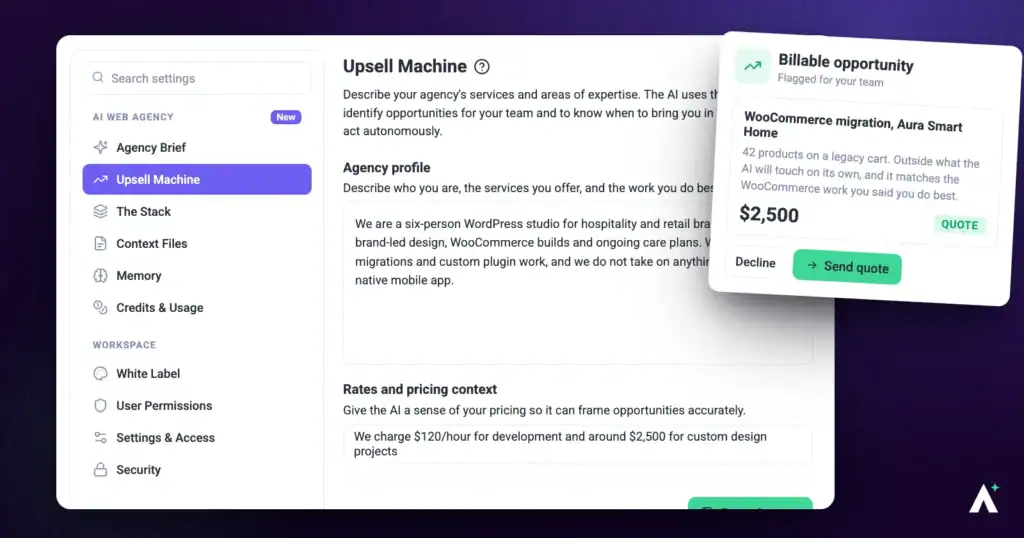
The Upsell Machine is what teaches the AI where your paid services begin. Two fields, ten minutes, and every quote, proposal, and plan your workspace produces from then on is grounded in what your agency actually sells and what it actually charges.
That's the whole setup. What it unlocks is considerably larger: pricing that comes from your rate card instead of market averages, proposals with real scope boundaries, work outside your speciality redirected rather than accepted, and an AI that knows when to bring you in rather than act on its own.
What It Does for Your Agency
Scope creep gets quoted, not absorbed
Work beyond an agreed scope is routed through change control and priced at your rates. It is never folded in silently, and never implied as free. When a request would change strategy, audience, or scope, the cost and timeline are surfaced for sign-off before the work begins rather than discovered afterwards.
Your prices come from your rate card
Quotes and proposals are priced from your own pricing context, phase by phase, showing the basis — per client, per project, or retainer — so the number is defensible rather than a guess. The AI is barred from inventing a rate or a discount your context doesn’t support.
Proposals arrive with their edges drawn
Every proposal states scope in two halves: what’s included as real deliverables, and an explicit out-of-scope list naming the adjacent things the engagement doesn’t cover. Revision rounds are capped and the number is written into the document, with a change-control line saying further work is quoted separately at your rates. That’s the boundary most agencies only draw after they’ve been burned.
Work you don’t want gets redirected
If your profile says you refer something on, it isn’t quoted. The AI says so and points at the referral path instead. The same rule applies when the work is planned rather than priced — out-of-speciality work is redirected rather than folded into a plan.
Requests inside your speciality come to you
Your stated services also tell the AI when to bring you in rather than act on its own, so your service line stays yours to decide on.
Opportunities surface while the work happens
When the AI notices an opportunity during ordinary team work, it records it as an internal task tagged Opportunity, one task per opportunity, mentions it once with a link, and carries on. You can find these tasks in the Inbox and on Boards, and each client’s details panel (Beta) lists theirs under Upsell Opportunities. Nothing is pitched at your client on your behalf. You can also ask outright, and get opportunities tied to specific projects and sites rather than offered in the abstract.
Everything client-facing stays yours
Quotes and proposals go out from your agency, in your brand and voice, using your white-label settings where they’re set. The AI is never named. An expansion is framed as growth on an existing account rather than a new relationship.
Where You’ll See It Working
- Quotes — when a client asks what something would cost, the answer is scoped against your services and priced from your rates.
- Proposals — branded documents built around the client’s real need, priced phase by phase, with exclusions and a revision cap.
- Planning — before work is shaped, your speciality and referral boundaries are treated as constraints on what gets proposed.
- Opportunity spotting — during team work, on request in workspace chat (Beta) or from a client’s details panel (Beta), and every week with the Upsell opportunity (internal) workflow template.
Step-by-Step Guide
Step 1: Opening the Upsell Machine
The Upsell Machine is what turns an out-of-scope request into a quote rather than unpaid work.
Instructions:
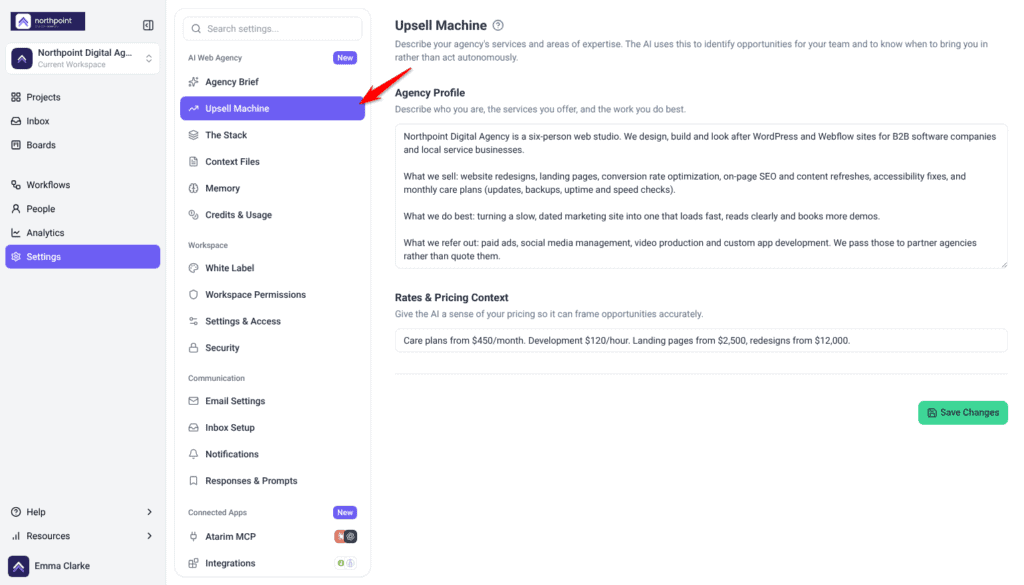
- From the main dashboard, select Settings.
- In the menu on the left, under AI Web Agency, select Upsell Machine.
- Confirm the page header reads Upsell Machine, with the description explaining that the AI uses this to identify opportunities for your team and to know when to bring you in rather than act autonomously.
Step 2: Writing Your Agency Profile
The larger of the two fields, and the one that does most of the work. On screen it asks you to describe who you are, the services you offer, and the work you do best.
Instructions:
- Select the Agency Profile text area.
- Describe what your agency does, in the words you’d use with a new hire rather than a client.
- Name the services you actively sell. Be specific — “we handle all SEO strategy and content” gives the AI far more to work with than “we do marketing”.
- Name what you don’t do, and what you refer out.
- Select Save Changes. A confirmation appears briefly once the change is stored.
Say What You Don’t Do, Not Just What You Do
Step 3: Adding Your Rates and Pricing Context
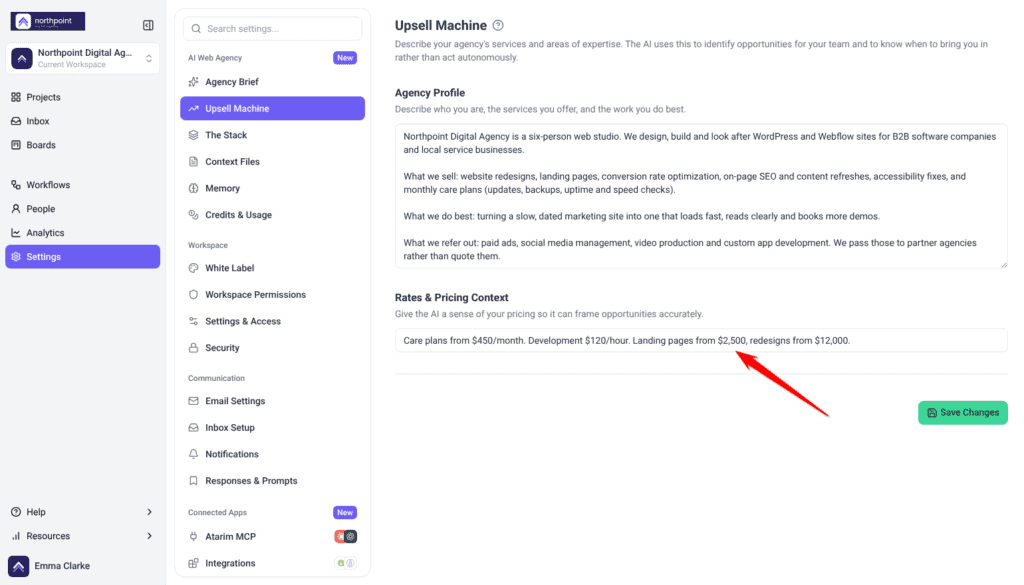
A single line describing how you charge. The field’s own example reads: We charge $120/hour for development and around $2,500 for custom design projects.
- Select the Rates & Pricing Context field.
- Describe your pricing structure — hourly, per project, retainer, or a mix.
- Include the figures you’re comfortable having quoted to a client.
- Select Save Changes. A confirmation appears briefly once the change is stored.
One Line Is Enough, but Make It Specific
Step 4: Finding Opportunities
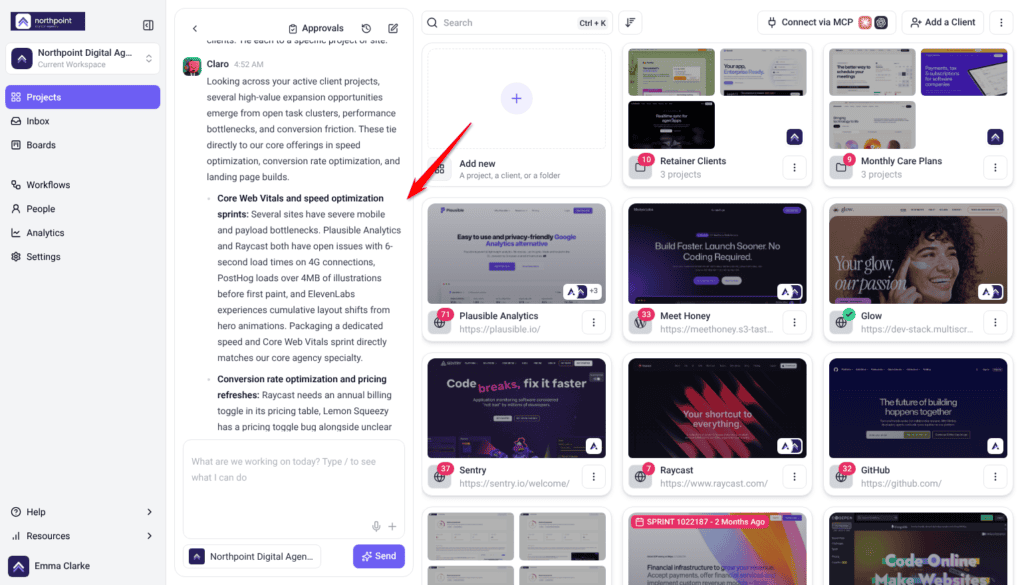
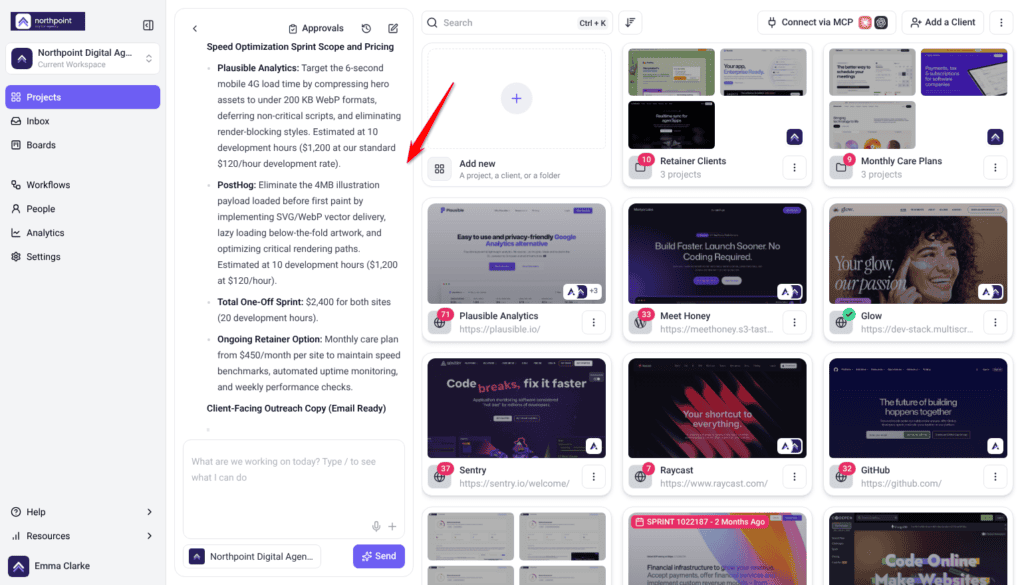
You can ask for upsells in three places. Each opportunity comes back tied to a project or site, priced from your rates with the basis shown, with a reason drawn from the client’s site and a line you can use with the client. Anything Claro logs is an internal task, so your client never sees it.
Ask in workspace chat
Instructions:
- Open the chat on the left of Projects or of a project’s dashboard. If a conversation is already open, select New chat.
- Select Find upsell opportunities. It fills the message box with a request to look across your active projects. Change it to name one client or site if you like.
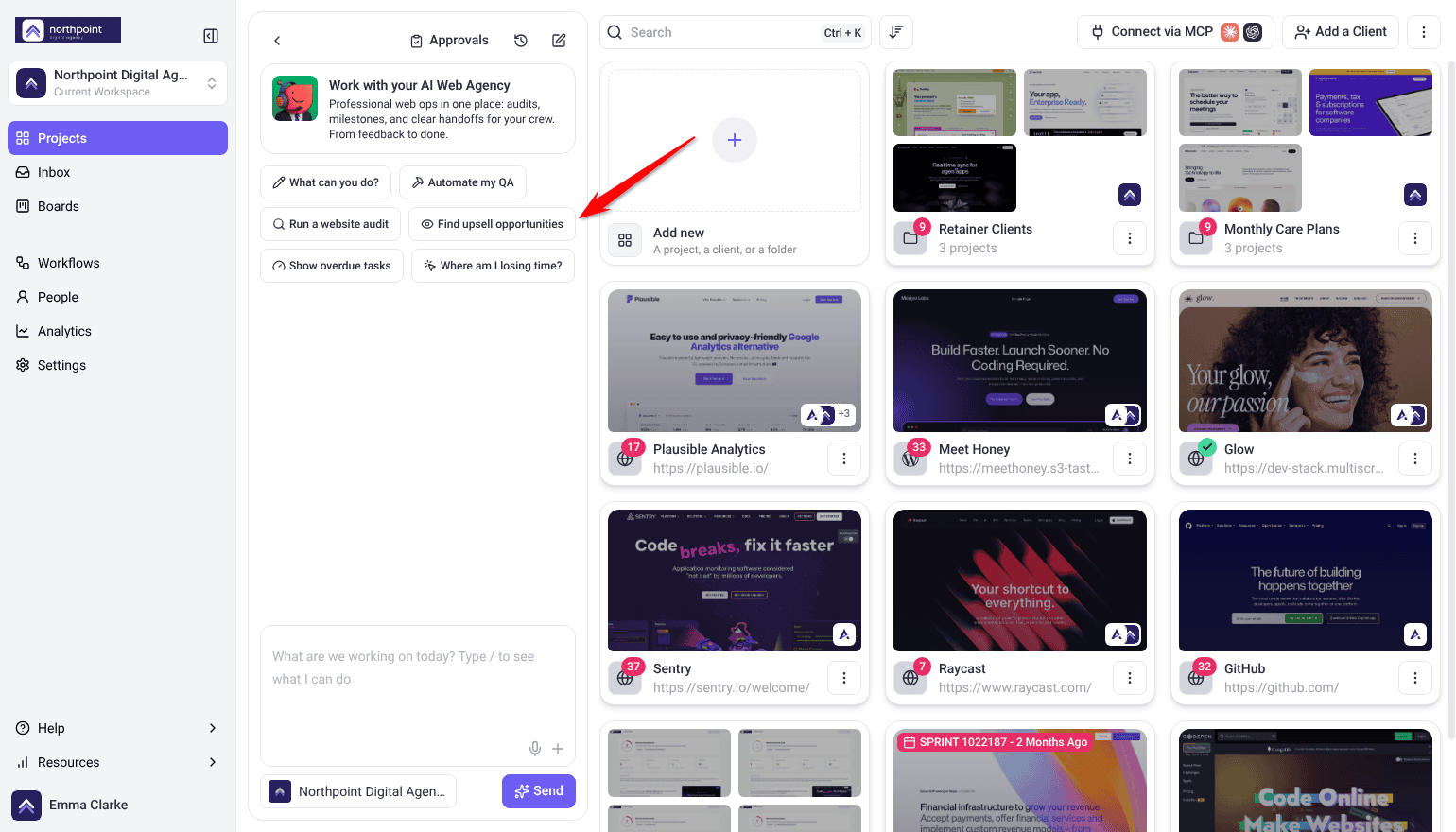
- Select Send.
- Read Claro’s reply. Each opportunity names its project or site, a price and how it was worked out, and how to put it to the client.
- Ask for a quote or a proposal on any worth pursuing.
Ask, and It Answers From Your Profile
From a client’s details panel
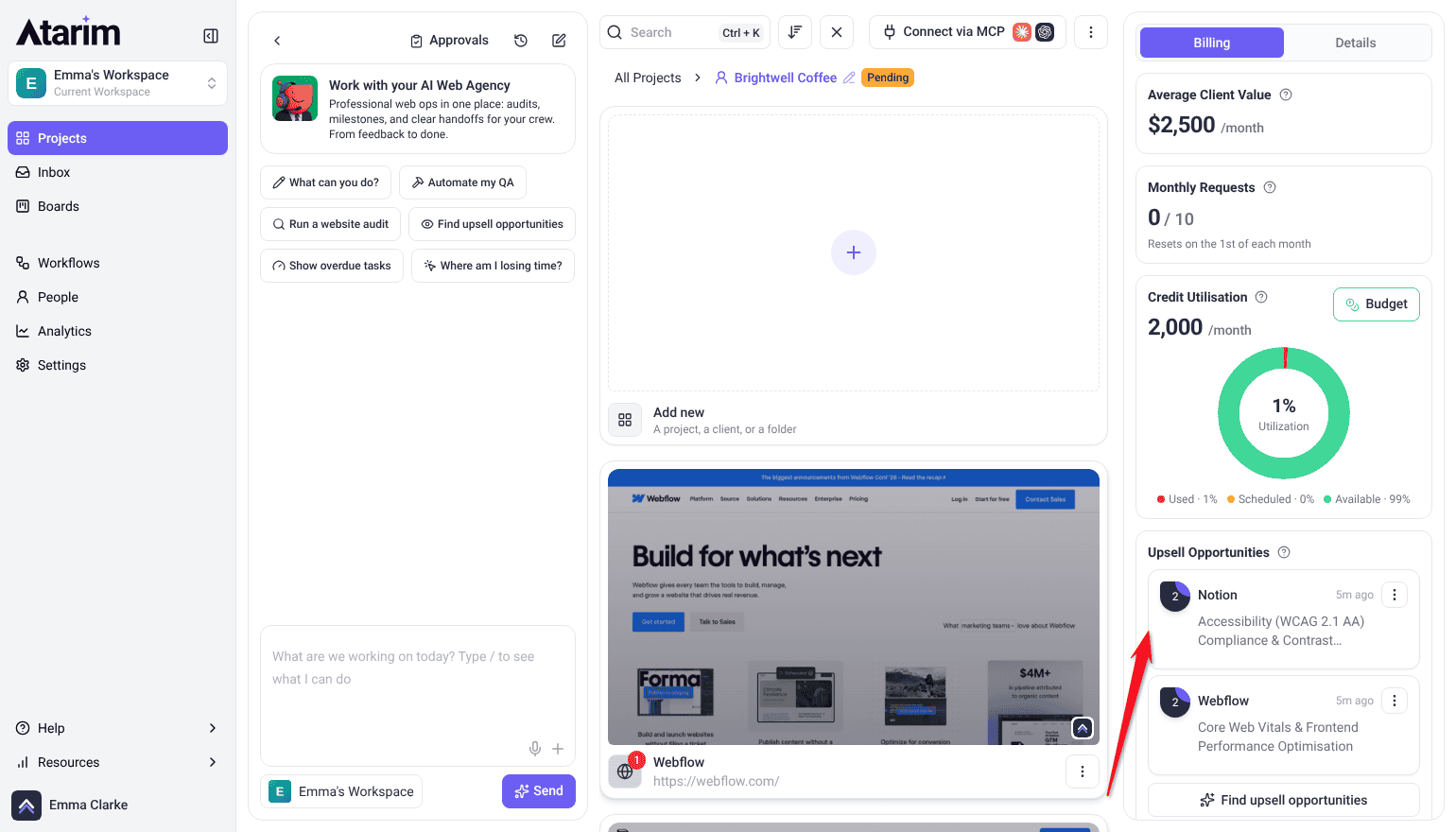
Each client folder lists the opportunities your AI team has logged for that client’s projects. Owners and Administrators see them, on a computer.
Instructions:
- On Projects, select the client folder. The client details panel opens on the right, on the Billing tab.
- Find the Upsell Opportunities card. Each opportunity is a task, newest first, with the project it belongs to.
- Select one to open it, or use its ⋮ menu for Open in Inbox or Open in Boards. A task pinned to a page also offers Open on the site.
- To look for more, select Find upsell opportunities. Claro picks the request up in workspace chat, sets up the upsell workflow for this client’s projects or runs the one you already have, and asks for your okay before switching a new workflow on. Opportunities found this way are tagged upsell, and the card lists them alongside those tagged Opportunity.
Every week, with a workflow
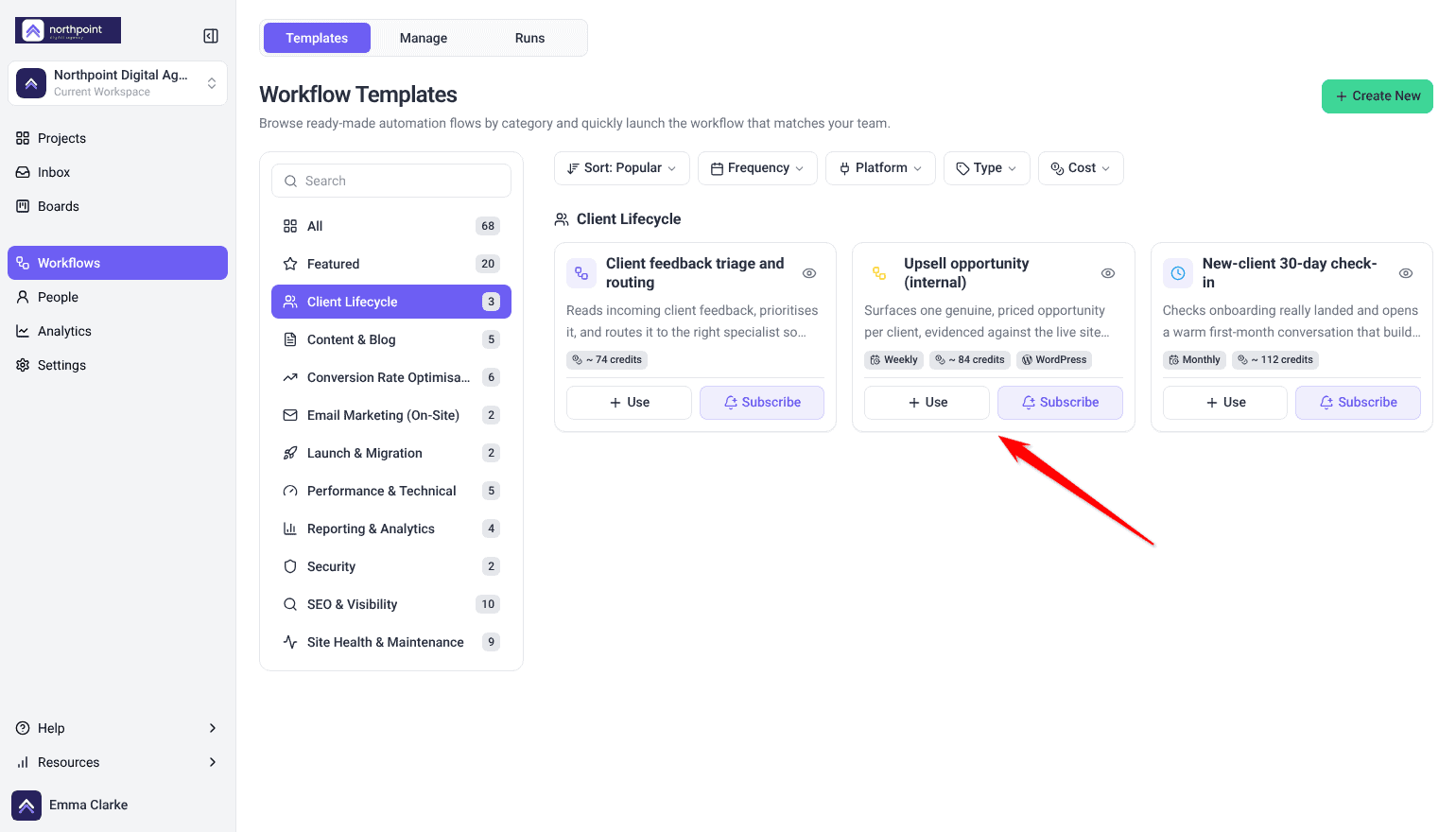
In Workflows, the Templates tab lists Upsell opportunity (internal) under Client Lifecycle. It runs weekly on WordPress projects and surfaces one priced opportunity per client, checked against the live site and your rates. The card shows its estimated credits per run. Select Use or Subscribe to add it. Explore Use or Subscribe.
Reading the proposal card
When the Upsell opportunity workflow finds an opportunity, Claro writes the proposal into the task as a card titled The Proposal, marked Drafted by Claro with the date. Open the task in the Inbox to read it. A proposal you ask for in chat may come back as a written document instead.
Instructions:
- Read the headline and the list of what the work includes.
- Check the Price, marked Estimate. Worked out from beside it says how Claro reached the figure. Select the price to change it.
- Read the Suggested message to your client contact, and select it to change the wording.
- Send the message to your client yourself. The card doesn’t send anything.
Your changes to the price and the message stay in this browser, so teammates still see Claro’s draft. If Worked out from reads “Nothing on file about what you charge, so this is a guess from the size of the work. One line in Settings and it gets close.”, add your rates as in Step 3 and ask Claro again.
Step 5: Keeping It Current
The AI quotes from whatever is saved here, so stale rates become stale quotes.
Instructions:
- Return to Settings > AI Web Agency > Upsell Machine whenever your services or rates change.
- Update both fields to match.
- Select Save Changes.
FAQs
Who can see and edit this page?
Settings is admin-only, and Upsell Machine sits behind an additional agency-settings permission on top of that. If it isn’t showing, ask an administrator to check your access.
Can my clients see or change this?
No. Settings never renders for a Website Owner, so your service description and rates stay on your side.
Will the AI make up a price if I don’t give it rates?
Not in a proposal. With nothing on file, a proposal marks each phase’s price as to be confirmed. An upsell estimate on The Proposal card still shows a figure, labelled as a guess from the size of the work, until you add your rates.
Does it read my profile out to clients?
No. Both fields ground the AI’s answers without being recited unprompted, and anything a client sees comes from your agency in your brand and voice.
What stops a client asking for extra work and simply getting it?
Work beyond the agreed scope routes to change control and is quoted separately at your rates rather than absorbed. Proposals carry an explicit out-of-scope list and a capped number of revision rounds, so the boundary is written down before the work starts.
Where do the opportunities it finds actually go?
An opportunity spotted during team work becomes an internal task tagged Opportunity, mentioned once in chat with a link, and it shows on that client’s details panel under Upsell Opportunities. Opportunities you ask for come back in the chat, each tied to a specific project or site.
Can I set different services or rates for one client?
No. Both fields live at workspace level and apply everywhere.