Credits & Usage: Tracking What Your AI Team Spends
One pool powers every review, chat, brief and workflow run — here's where to see the balance, read the feed, and set a budget per client.
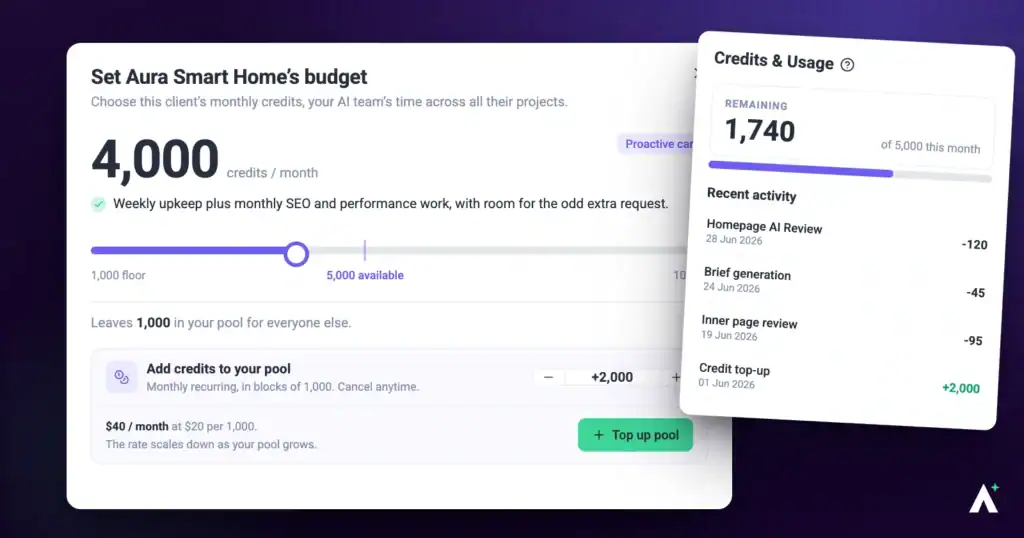
Credits are what your AI team runs on. Every review, every chat reply, every workflow run and every generated brief draws from one pool, and Credits & Usage is where you see what's left and who spent the rest.
There's no billing to configure here and nothing that can go wrong by looking. It's a reporting screen with one action on it: topping up.
What It’s For
One pool, shared across everything
Your credits aren’t split by feature or by client. Page reviews, task chat, Claro, brief generation, SEO lookups, image generation and workflow runs all draw from the same balance, which is why a heavy month of automation shows up as fewer credits for reviews. Working with your own AI tool over MCP doesn’t use credits, except when it asks Atarim to run a design review, an SEO lookup or a workflow, or to generate an image.
A line item for every charge
The usage feed names who spent the credits, what they were doing, which site it applied to, and when. When a month runs short, you can see exactly where it went rather than guessing.
Budgets you set per client
You can carve a monthly allocation (Beta) out of your pool for a specific client, so their proactive work has a ceiling you chose. Allocated credits are reserved rather than spent, so you always know how much of the pool is genuinely uncommitted.
Where your balance comes from
Your total is your plan’s monthly credits plus any monthly credit packs you’ve added. One-time credits, such as the 200 you get at sign-up or credits from a coupon, sit alongside them and are always used first.
Who Sees What
Credits look different depending on which side of the relationship you’re on.
| Role | What they see and can do |
|---|---|
| Owner and Administrators | The full Credits & Usage screen in Settings, the usage feed, top-ups, and the ability to allocate a monthly budget to any client |
| Team Members and Collaborators | No access to Settings, so no balance and no feed. They can still use AI features, and their activity appears in the feed under their own name |
| Website Owners funded by you | Only the Credits Utilization donut on their project dashboard (Beta). They can’t reach Settings, see your pool, or change their allocation |
| Website Owners paying for themselves | The same donut, plus the ability to buy their own monthly credits from Get More Done rather than drawing on your pool |
Step-by-Step Guide
Opening Credits & Usage
Credits are one pool shared across every feature, so this is the only screen that shows where they actually went.
Instructions:
- From the main dashboard, select Settings.
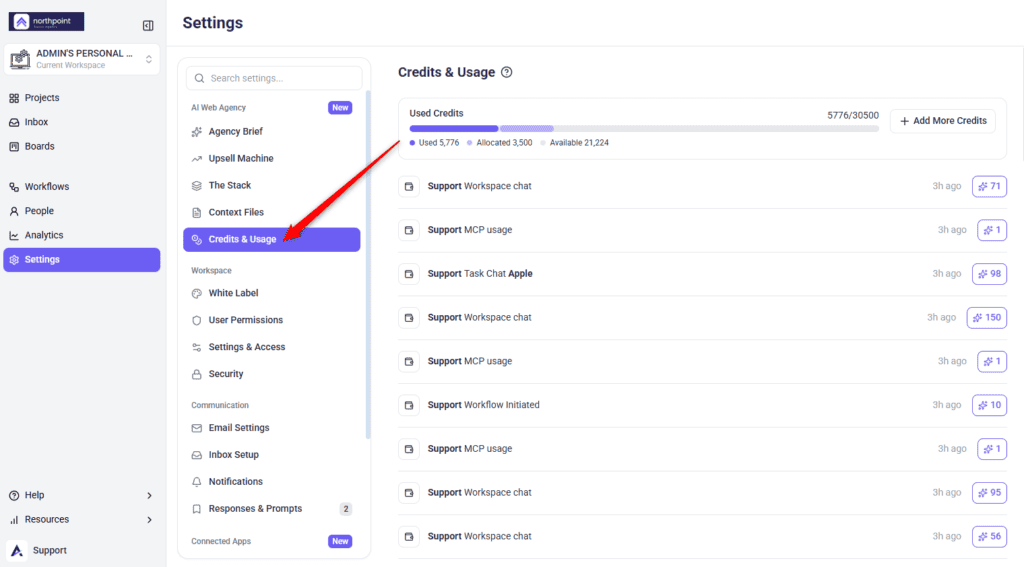
- In the menu on the left, under the AI Web Agency heading, select Credits & Usage.
- Read the Used Credits bar at the top. The counter to its right shows what’s been spent against your total.
Reading the Used Credits Bar
The bar is segmented rather than a single fill. Where you’ve allocated credits to clients, a legend appears directly beneath it with three figures.
| Figure | What it means |
|---|---|
| Used | Credits already consumed this period |
| Allocated | Credits reserved for clients but not yet spent — held against your pool rather than taken from it |
| Available | What’s genuinely free to spend, once used and allocated are both subtracted |
Reading the Usage Feed
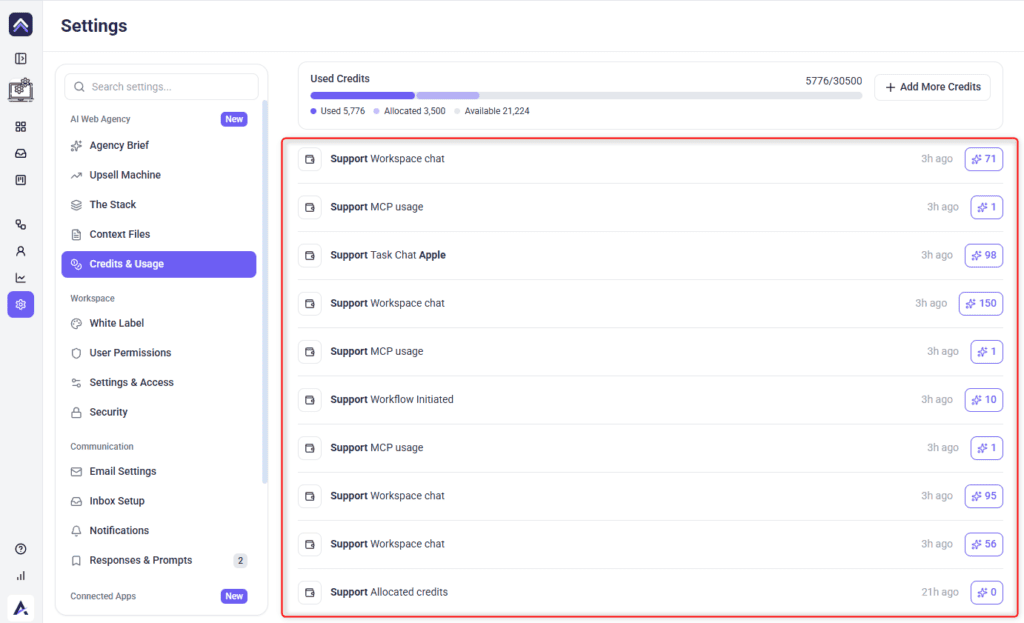
Below the bar, every charge appears as its own row: who did it, what they did, the site it applied to, the date, and the credits that row consumed.
- Scroll the feed to review recent activity.
- Keep scrolling to load older records — the feed pulls fifty at a time.
- Read the wording to identify the feature. Clarifications and brand briefs have their own phrasing. Other charges show the name of the charge, such as Workspace chat, Workflow Initiated, Image generation or SEO research.
| What the row says | What was charged |
|---|---|
| Review: Viewport [site name] | An AI page review checked one screen size on that site |
| Task Chat [site name] | Someone used AI chat inside a task on that site |
| clarified a task on site [site name] | Claro rewrote or clarified a task. The word task in this row links back into Collaborate |
| generated brand guidelines | Someone generated an Agency Brief or a project brief from a website URL |
Topping Up Your Credits
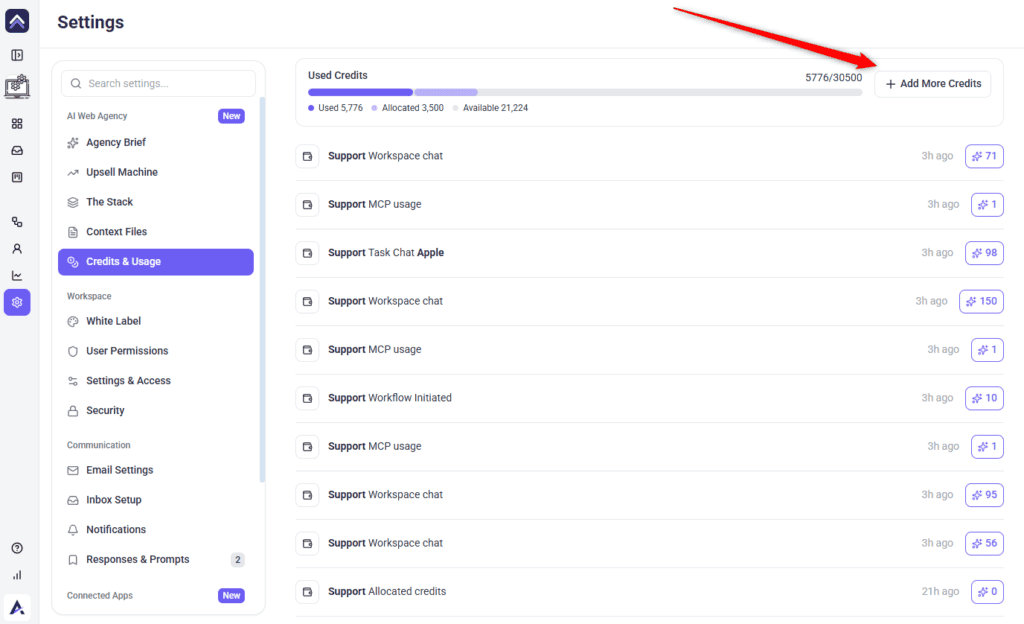
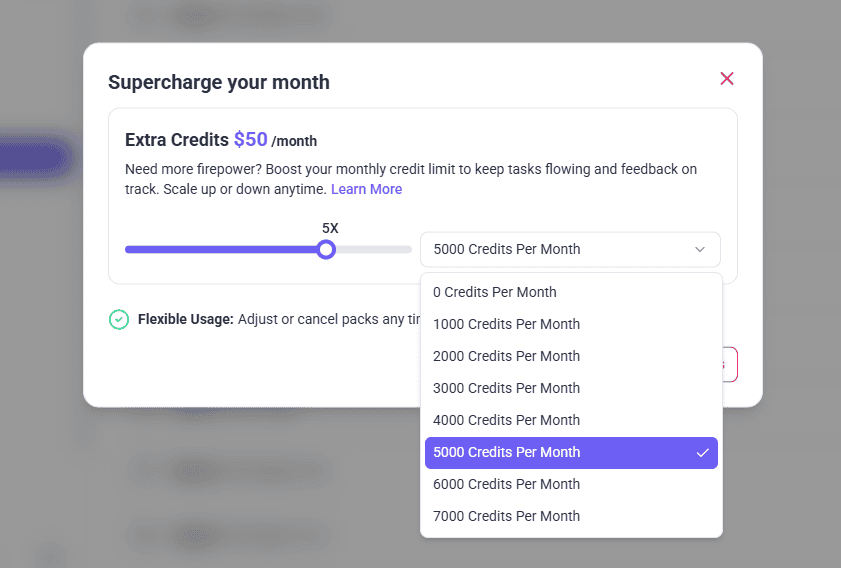
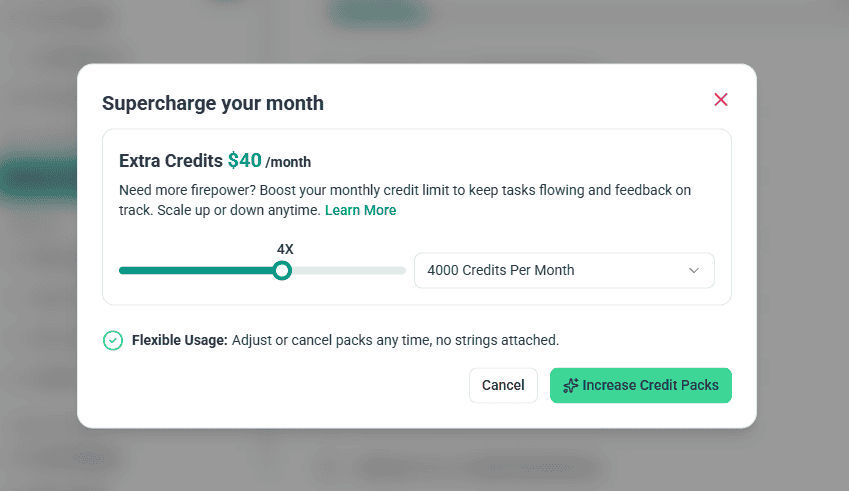
A top-up adds to the existing balance rather than replacing it, and takes effect immediately. If you have a coupon code, use Have a coupon code? in the same panel. A coupon adds one-time credits and can be claimed once per account.
Instructions:
- Select Add More Credits, to the right of the bar.
- Complete the purchase in the panel that opens.
- Return to Credits & Usage and confirm the total beside the counter has increased.
Seeing a Single Client’s Usage
The workspace screen covers everything at once. For one client, the project dashboard (Beta) carries its own view.
Instructions:
- Open the client’s project dashboard.
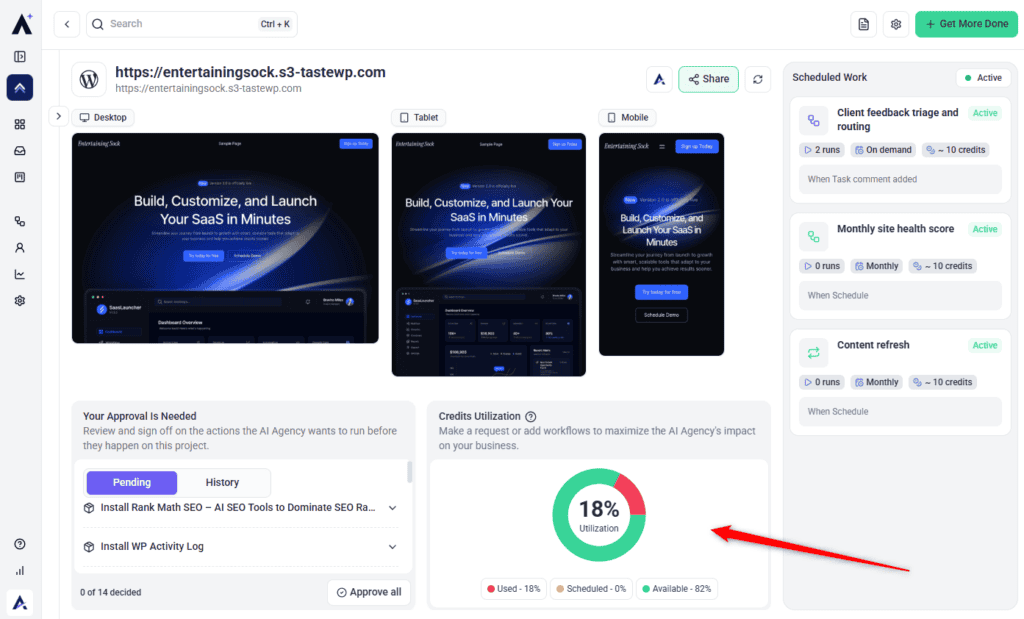
- Find the Credits Utilization panel. Its subtitle explains the intent: make a request or add workflows to maximise the AI Agency’s impact on your business.
- Read the donut. The centre shows a utilisation percentage, and the legend beneath breaks it into three parts.
| Segment | What it means |
|---|---|
| Used | Consumed this period |
| Scheduled | Committed to upcoming workflow runs between now and the end of the month, but not yet spent |
| Available | Ready for new requests |
Setting a Client’s Monthly Budget
Allocating credits gives a client a ceiling for their proactive work, drawn from your pool.
Instructions:
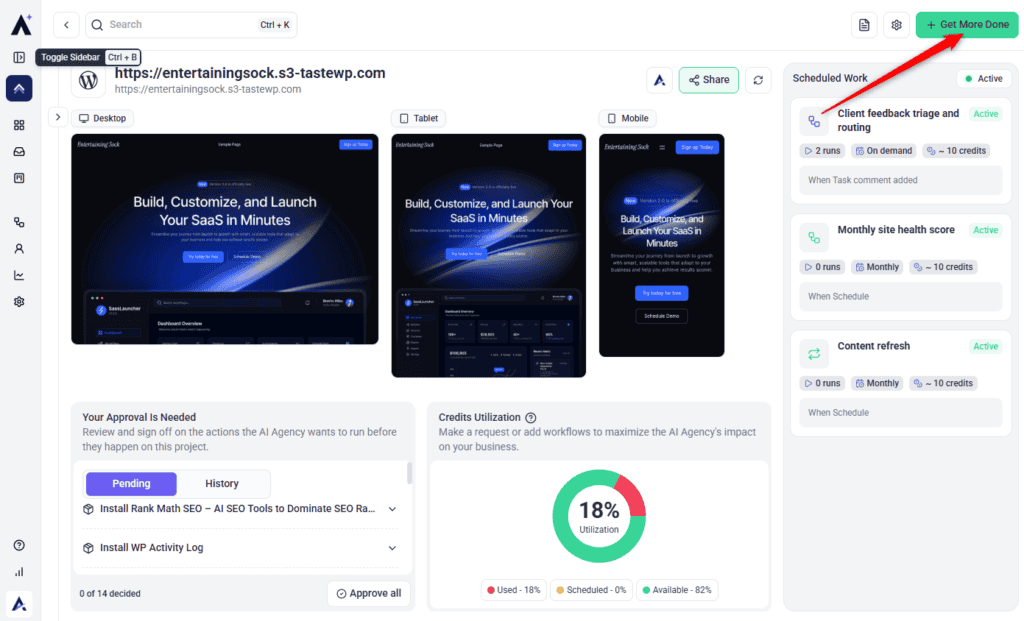
- Open the client’s project dashboard (Beta).
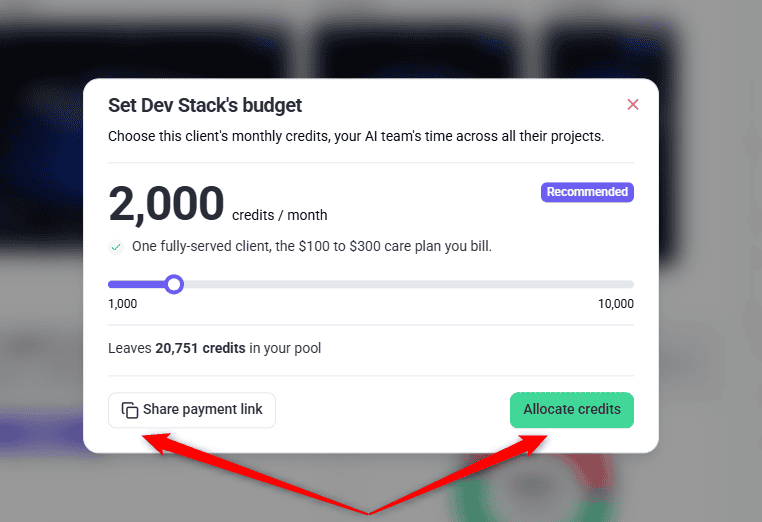
- Select Get More Done in the top bar. The Set [client name]’s budget panel opens.
- Read the description: this is the client’s monthly credits, your AI team’s time across all their projects. Where a plan is already approved, it also tells you roughly how much of the budget that plan uses each month, with the rest as headroom for requests.
- Drag the slider to choose an amount. It runs from 1,000 to 10,000 credits in steps of 100.
- Watch the badge beside the figure as you move it.
- Check the line beneath, which tells you how many credits the allocation leaves in your pool.
- Select Allocate credits to confirm, or Share payment link if the client is paying for their own plan.
When the budget is more than your pool
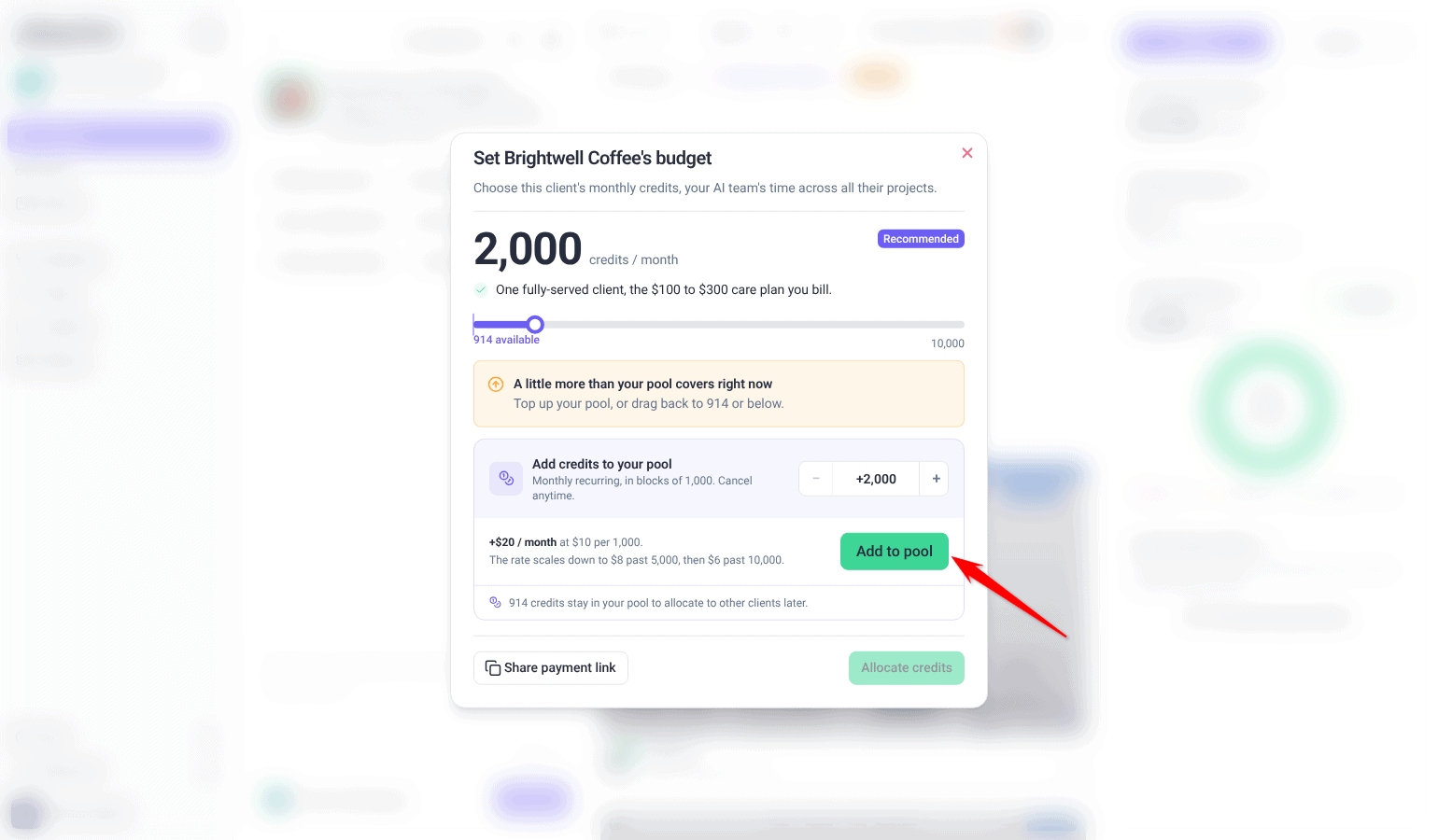
You can only allocate credits your pool has available. Drag the slider past that and the window reads A little more than your pool covers right now, and Allocate credits stays unavailable until the pool covers the amount. Drag back to what is available, or add credits first.
Instructions:
- Under Add credits to your pool, choose how many to add with − and +. They are monthly credits in blocks of 1,000, and the window shows the monthly price.
- Select Add to pool and complete the purchase.
- When the credits are in your pool, select Allocate credits.
On the Free plan there is no pool to top up yet, because credit pools come with a paid plan. The window offers Upgrade plan instead: upgrade first, then allocate the budget from your new pool.
Add a client shows the same warning when the Client budget is more than your pool. The client is still created. Then select Set Budget on their folder to add credits and allocate the budget.
How a reservation actually behaves
An allocation isn’t taken out of your pool up front. What’s held back is the unspent portion of it, recalculated as the client works.
- You allocate 2,000 credits to a client. Your available balance drops by 2,000.
- That client’s work consumes 600 credits over the month. The reservation falls to 1,400.
- Your available balance rises accordingly — the 600 has moved from reserved to used, not been double-counted.
- If the client spends their whole allocation, the reservation reaches zero rather than going negative.
What Uses Credits
Anything that calls the AI draws from the pool. In practice that means:
- Page and design reviews — the largest single draw. A page review costs 10 credits for each section of the page it checks
- AI chat, in a task or in workspace chat (Beta) — charged on what each turn actually uses, at least 1 credit a turn. You need at least 10 credits available to start a chat
- Claro — clarifying or rewriting a task, charged at a small amount per clarification
- Brief generation — generating an Agency Brief or a project brief from a URL
- Workflow runs — 10 credits for each scheduled or manual run of an automation, plus whatever any AI steps in it use
- SEO research — each lookup costs a fixed amount, set by which lookup it is rather than by how long it takes
Editing anything by hand costs nothing. Typing into a brief, changing a plugin in The Stack, writing a task, or reading any of these screens is free.
How Chat Turns Are Charged
The list above says which features draw credits. This is how the number is arrived at for a chat turn, whether that chat sits inside a task or in your workspace.
- Priced on what the exchange actually cost — not a flat fee per message. When the assistant has to use tools and work through several rounds before it can answer, every round counts towards that turn’s cost, which is why a long back-and-forth draws more than a one-line question
- Rounded up, never down — any turn that draws credits costs at least one, so a very short exchange still shows as 1
- Charged once per turn — if a retry arrives while a turn is still running, or a reply is finalised twice, the second attempt is refused rather than billed again
What SEO Research Costs
SEO research is priced differently from everything above. A chat turn costs whatever the exchange cost; an SEO lookup has a fixed price set by which lookup it is, charged once per call however many keywords or rows come back.
| Lookup | Credits | What it covers |
|---|---|---|
| Search volume | 25 | The one that costs real money. Live monthly search volumes, priced per call rather than per keyword — so ask for the whole list at once, not one term at a time. |
| Backlinks, domain history and AI mentions | 5 | A domain’s link summary, its referring domains, its history, and how often AI assistants mention it. Each is its own lookup, five credits each. |
| Most research | 3 | Keyword ideas and overviews, domain overview, ranked keywords, competitors, overlap between two domains, organic results, local business listings, and answers from AI assistants. |
| Quick checks | 1 | Keyword difficulty, search intent, an on-page audit, and reading a page’s content. |
| Free | 0 | Keyword trends, a Lighthouse report, and looking up a location or country. |
What Isn’t Charged
Some turns cost nothing at all. Which ones depends on where the chat is, because workspace chat (Beta) and the chat inside a task do not currently behave the same way.
| Situation | Workspace chat | Chat inside a task |
|---|---|---|
| The assistant returns no reply | Not charged. The turn is marked as failed in the conversation, with a retry so you can run it again. | Not charged, as long as the turn produced no reply and no tool activity. |
| A retry arrives while the turn is still running | Not charged. The second run is refused rather than run alongside the first. | Not charged. A reply is finalised only once. |
What Happens When You Run Out
Running out doesn’t lock the product. It stops the AI, and nothing else.
What stops
Anything that calls the AI becomes unavailable — reviews, AI chat in a task, Claro clarifications, brief generation. Where you try to use one, Atarim prompts you to add credits rather than failing silently.
What carries on
Tasks, comments, annotations, Collaborate, Kanban boards, the inbox, and every settings screen keep working. You can still write and edit a brief by hand, change your Stack mapping, and manage projects — none of that draws from the pool.
Scheduled work waits for a budget
When a workflow run is blocked because there aren’t enough credits, the run fails, the workspace owner gets an email headed Your workflow needs more credits, and the Workflows list marks it Out of credits. Runs stopped for lack of credits don’t count toward the repeated failures that switch a workflow off, so the workflow stays on.
FAQs
Do credits reset each month?
Yes, your monthly credits renew each month. One-time credits, such as the 200 you get at sign-up, never reset and are used first. Credits you buy on top sit in the same pool as your plan’s included credits.
Does allocating credits to a client take them from my pool?
Not immediately. Allocated credits are reserved against the pool rather than deducted from it, which is why the legend shows Allocated and Available as separate figures. They’re only consumed as that client’s work runs.
What’s the smallest budget I can set for a client?
One thousand credits, and the slider goes up to ten thousand in steps of a hundred.
Why does the project donut show different numbers from the settings bar?
They measure different things. The settings bar shows credits allocated to clients; the project donut shows credits scheduled against upcoming workflow runs. Both are commitments, but of different kinds.
Does editing a brief or changing a plugin cost credits?
No. Only AI actions draw from the pool. Typing into fields, changing settings, and reading reports are all free.
Can a client see my credit balance?
Settings is admin-only, so a Website Owner never reaches the workspace Credits & Usage screen. A client billing themselves manages their own top-ups instead.
How far back does the usage feed go?
It loads fifty records at a time and keeps loading as you scroll, so history is limited by patience rather than by a cut-off.
What happens when I run out?
AI actions become unavailable until you top up, but nothing else locks. You can still edit briefs, manage tasks, change settings, and run the parts of Atarim that don’t call the AI.
If I allocate credits to a client, are they gone from my pool?
Only the unspent part is held. The reservation shrinks as that client works, so credits move from reserved to used rather than being counted twice. Allocate 2,000 and once they’ve spent 600, only 1,400 is still held back.
Why is a client’s workflow not running when I have plenty of credits?
Scheduled work is gated on that client’s monthly budget (Beta), not your overall balance. With no budget set, approved workflows are marked Waiting and held. Set a budget and the first run starts that night.
Does a bigger top-up cost less per credit?
Yes. Pricing is volume-tiered and the rate per thousand drops as the amount rises. The panel shows the rate as you move the slider, so you can see the break points before you buy.
Can my team members see the balance?
No. Settings is admin-only, so Team Members and Collaborators never see the pool or the feed — though they can still use AI features, and their activity appears in your feed under their own name.
Why did the Scheduled figure drop without me changing anything?
It counts only the runs still due before the month ends. As those runs happen, the remaining commitment falls — so the number naturally decreases through the month and resets when the next one begins.
Conclusion
Credits & Usage answers two questions that otherwise get answered by guesswork: how much is left, and where the rest went. Because everything draws from one pool, a look at this screen before you approve a month of automation is usually enough to avoid running short halfway through it.
Set a budget per client and the picture gets sharper again — you stop reading one number for the whole agency and start seeing which client's work is actually consuming it.
Tips & best practices
- Check Available rather than Used — it's the number that tells you what you can still commit to.
- Set a monthly budget (Beta) for each client so their proactive work has a ceiling you chose, not one you discover.
- Look at the feed before topping up; a single heavy week of reviews is a different problem from a steadily rising baseline.
- Generate briefs once and correct them by hand — regenerating costs credits, editing doesn't.
- If a client's workflows aren't running, check their budget before checking your pool.