Enhancing Team Productivity with Atarim’s Tools
Six areas where a small setup change removes recurring friction for the whole team.
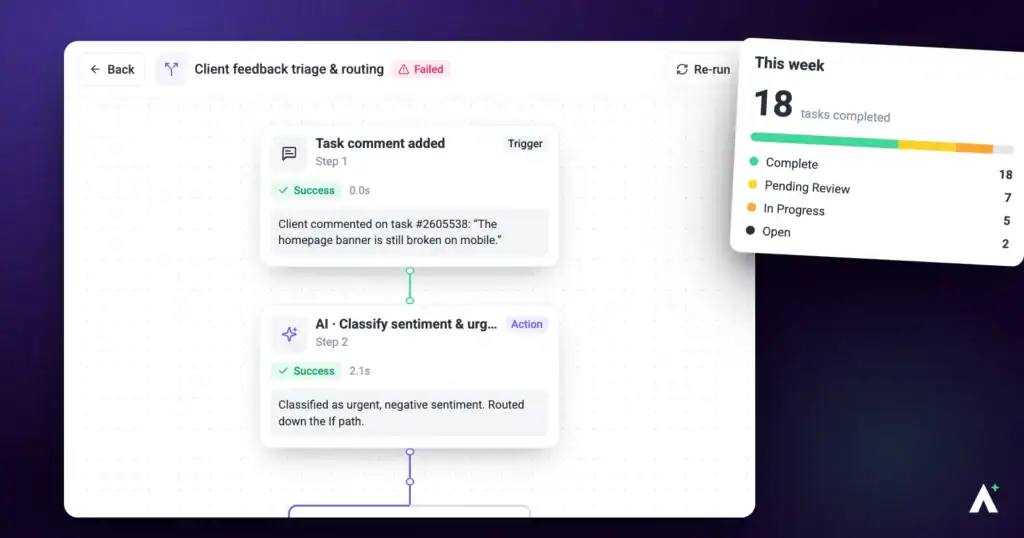
Productivity in Atarim comes from setup rather than effort. Six areas account for most of it — and each one removes a specific recurring cost.
Most productivity gains come from setup, not effort.
| Area | What it removes |
|---|---|
| Task and project management | Coordination overhead and email threads about where something is. |
| Team organisation | People hunting for the right project, or reaching one they shouldn’t. |
| Automation | Manual status updates and reminders. |
| Communication | Feedback scattered across inboxes and chat. |
| Accountability | Uncertainty about who changed what and when. |
| Branding | Inconsistent client-facing presentation. |
1. Streamline Task and Project Management
The aim is for the team to spend its time executing rather than coordinating.
Instructions:
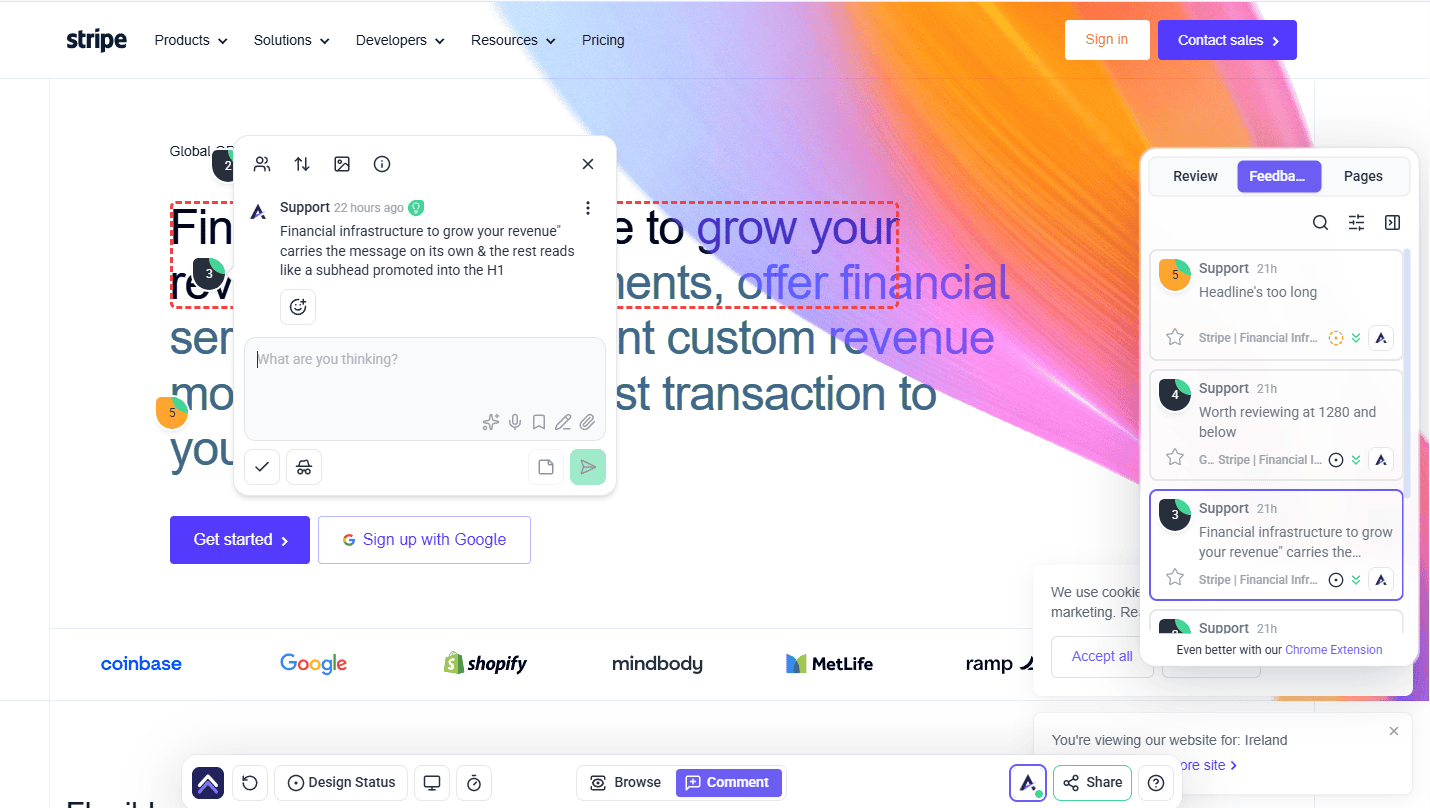
- Use visual collaboration to leave feedback directly on designs, images or websites, rather than describing it in an email.
- Create, prioritise and assign tasks from the task popover, marking anything team-only as internal.
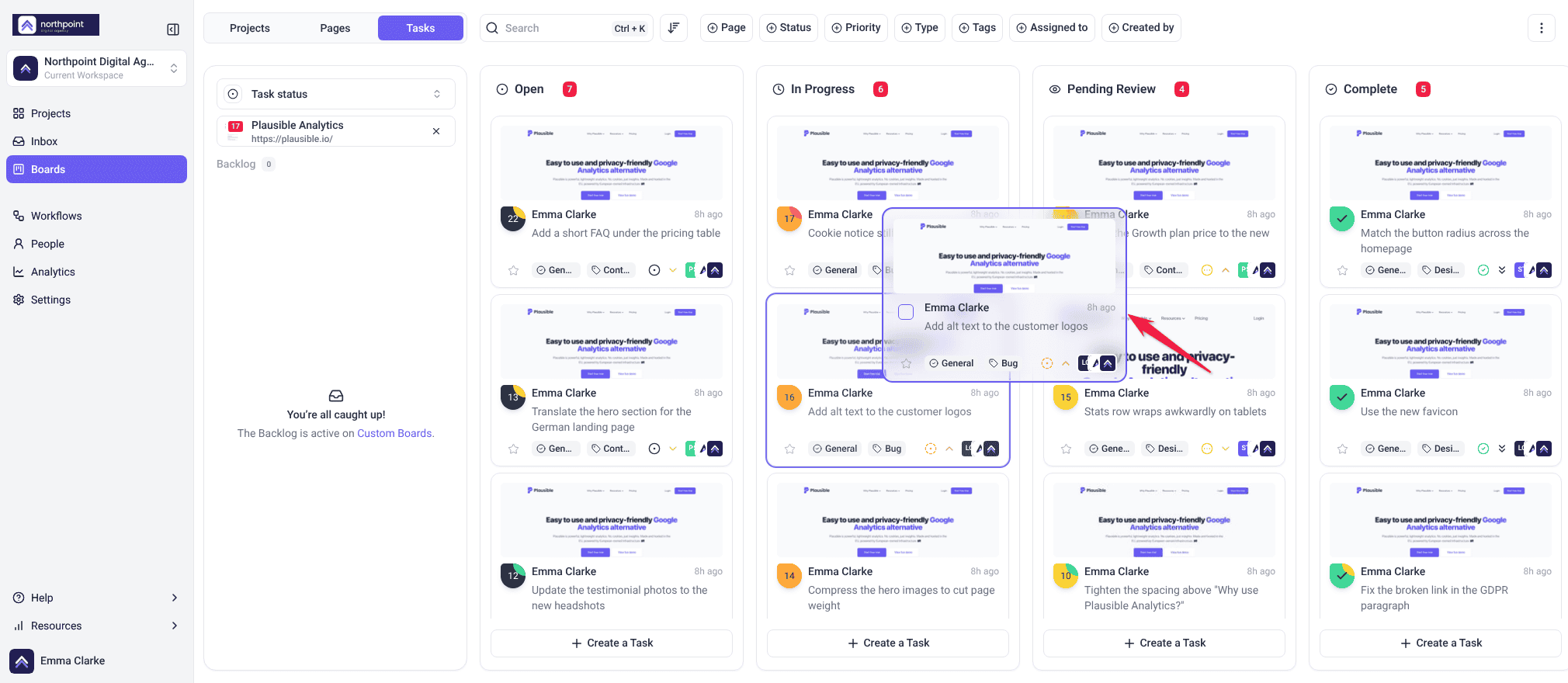
- Organise work on Boards and in the Inbox, updating statuses as work moves.
2. Organise the Team
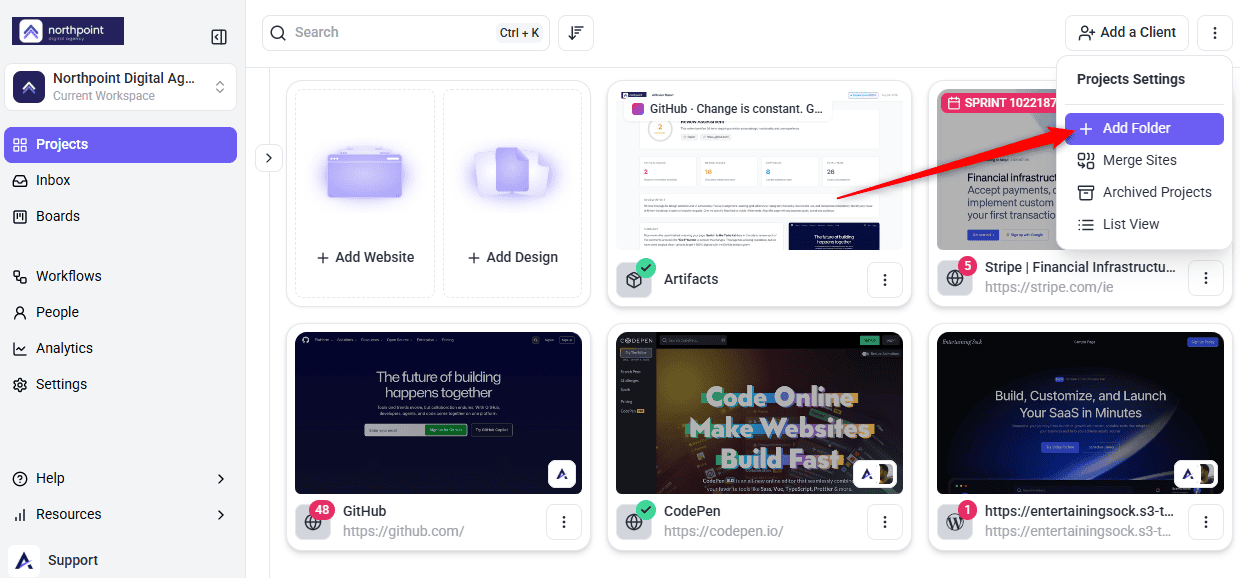
Structure at folder level is what stops access being granted project by project as the team grows.
Instructions:
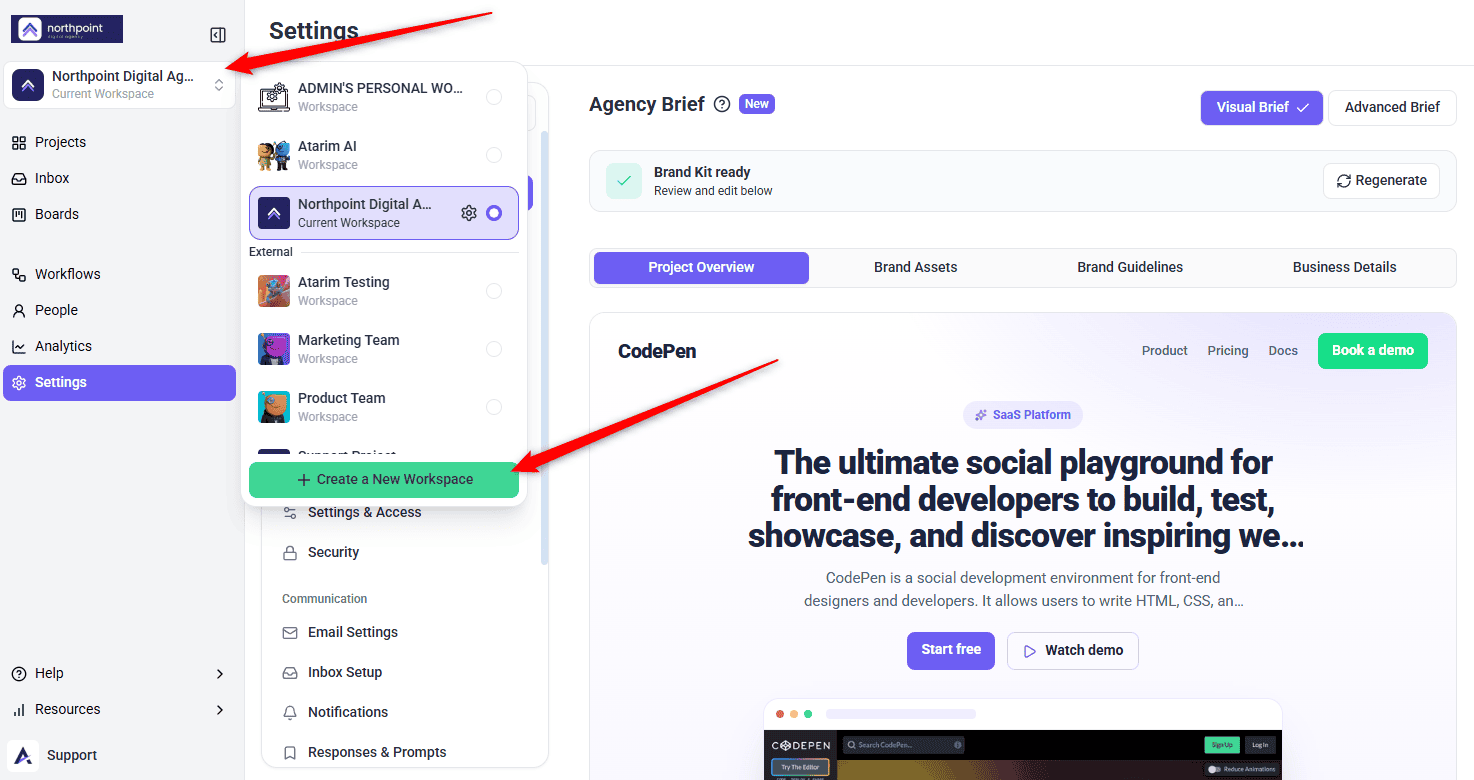
- Set up workspaces and folders by department, client or project type.
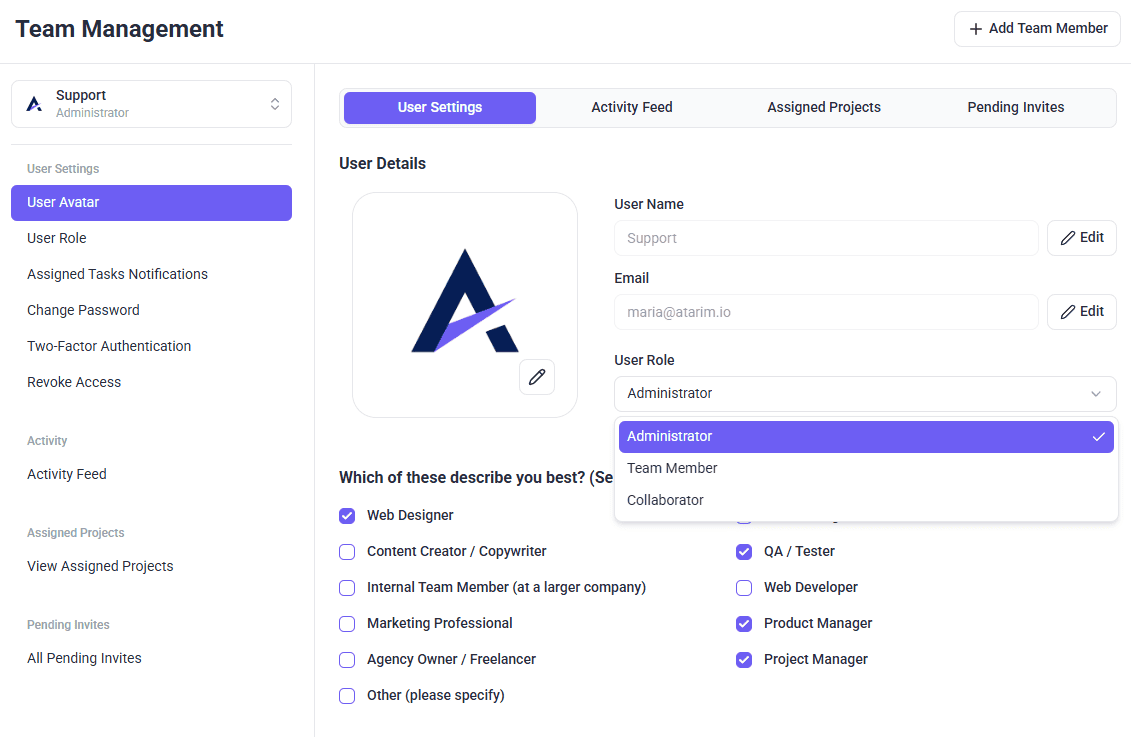
- Assign team members to folders so people reach what’s theirs.
- Assign roles to define responsibilities and prevent unintended changes.
3. Automate the Repetitive Parts
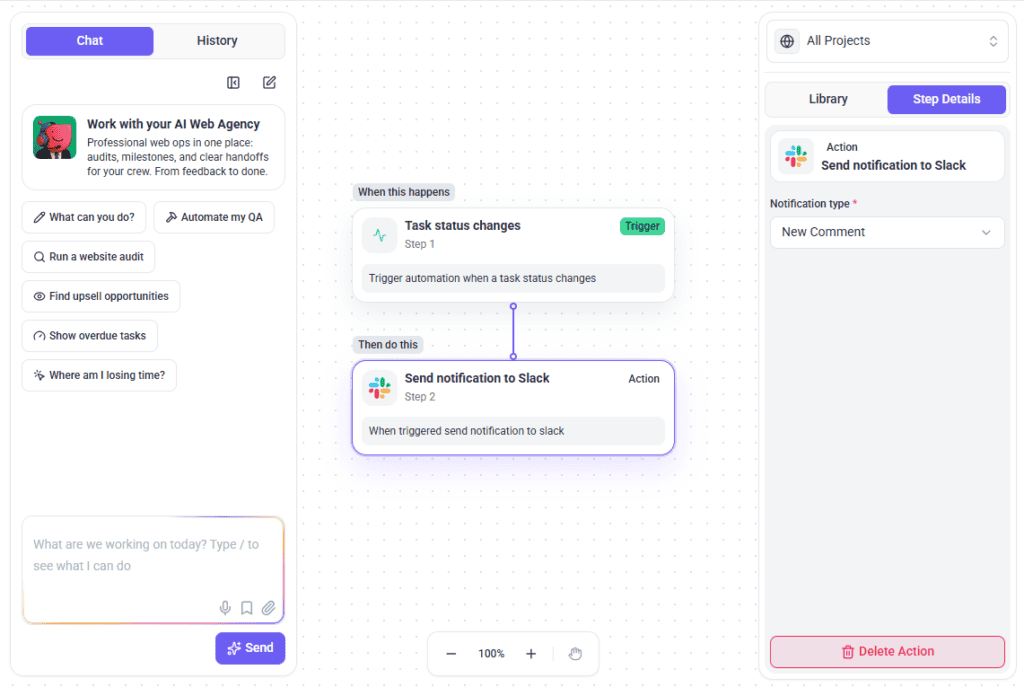
Workflows are a paid feature. Each run uses 10 credits, plus whatever any AI steps in it use. Team Members don’t see Workflows by default.
- Set up workflow automations to trigger on task activity — a status change, or a specific tag being added.
- Sync with external tools such as Jira or ClickUp so updates carry across.
- Test each automation with a real task before relying on it.
4. Centralise Communication
- Set up the unified email inbox so client email arrives as tasks in Atarim, where you can reply and assign each one to the right project.
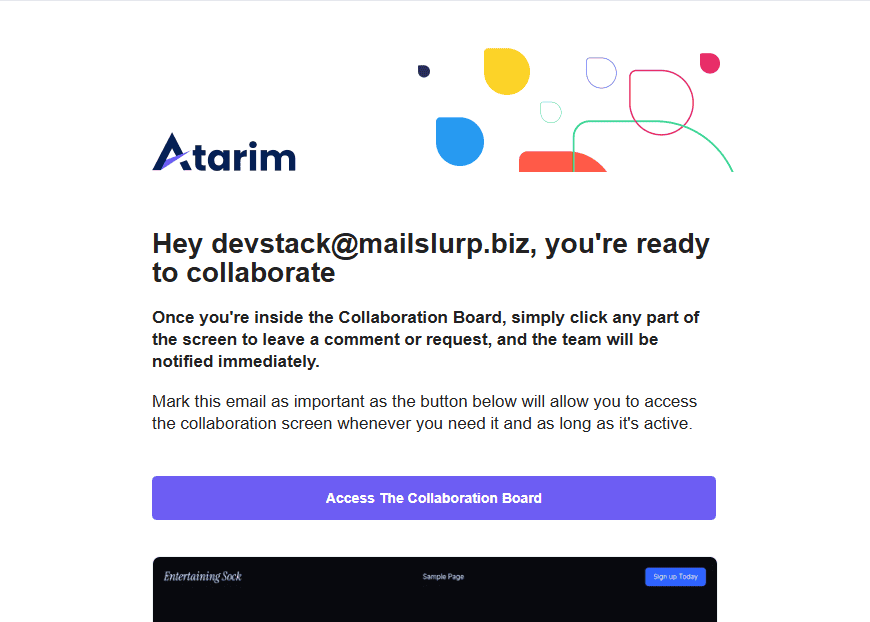
- Share projects by direct link or email invitation. Stakeholders can give feedback without an account.
5. Keep Work Accountable
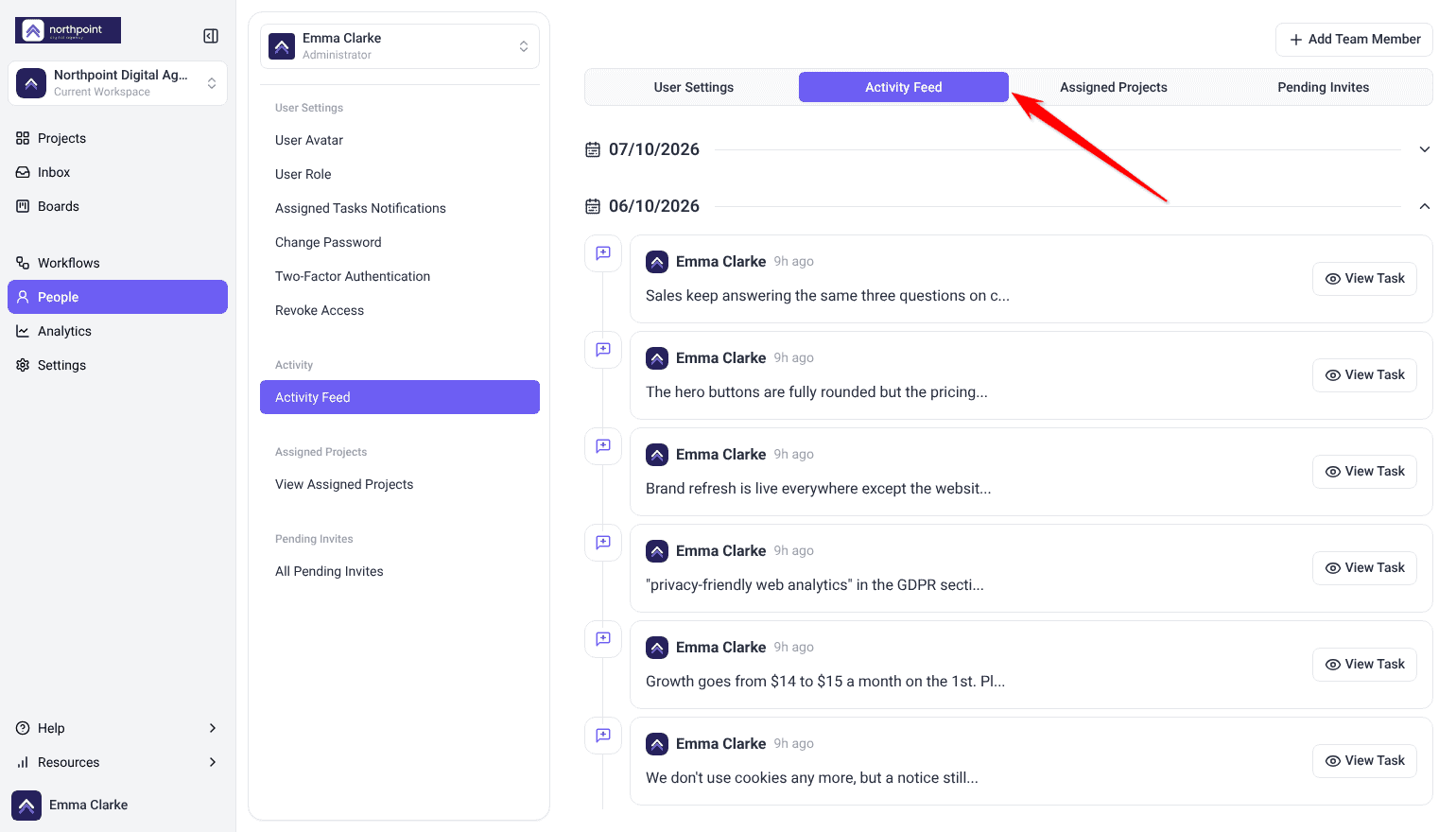
Activity feeds answer who changed what, which is usually faster than asking around. Activity Feed is a paid feature, and the People screen is only available to workspace owners and administrators.
Instructions:
- Review activity feeds to see what changed and who changed it.
- Check per-person activity from the People screen.
6. Apply Your Branding
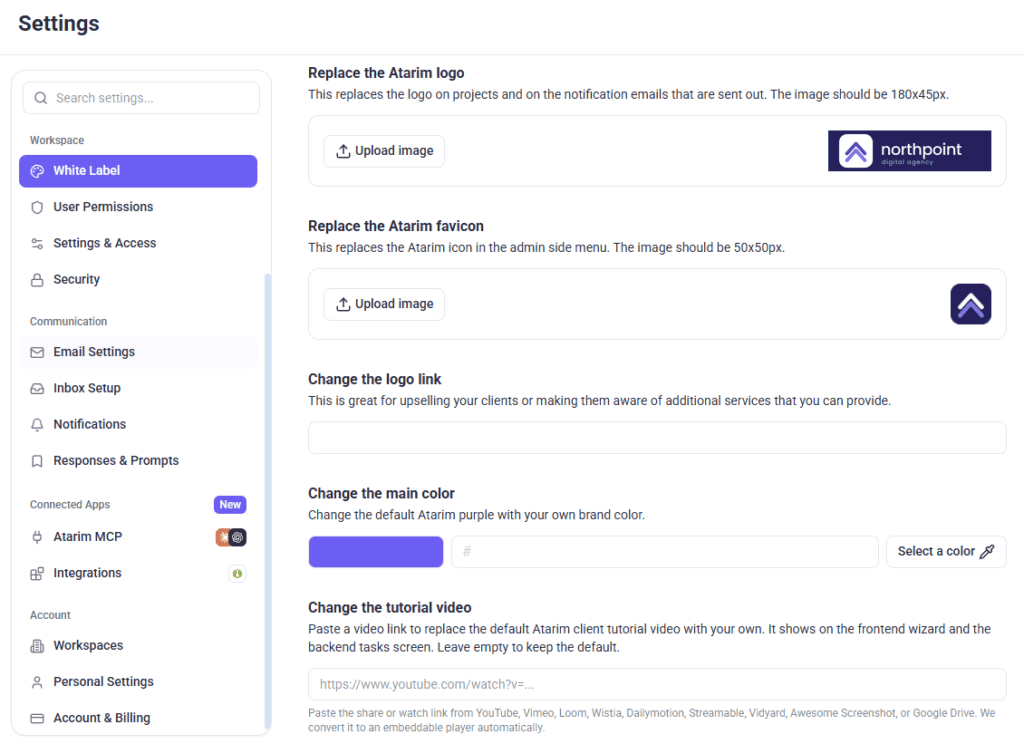
White label reaches email notifications too, so clients see your name rather than Atarim's. White label is a paid feature.
Instructions:
- Open Settings › White Label.
- Use Replace the Atarim logo (180x45px) and Change the main color. Notification emails carry your logo, so what clients receive looks like it came from you.
FAQs
Can I use automation for recurring work?
Yes. Workflow automations handle recurring assignments and reminders triggered by task activity.
Can I integrate with Slack for task updates?
Yes. Slack is a native integration, and it’s also available as a workflow action.
How do I enable branding?
Open White Label in Settings and add your logo and colours. Your logo is used in email notifications.
How do I keep work private from clients?
Mark tasks internal. Internal tasks are hidden from clients and guests, and they don’t send notification email.
Where do I see who changed what?
In activity feeds, including per-person activity from the People screen.
Common issues
- Client feedback goes unnoticed — check notification settings. They’re per person, so each teammate has their own.
- People can’t find their projects — review folder structure and assignments.
- An automation isn’t firing — check the trigger conditions still match how you work.
- An integration isn’t in the workflow list — connect it in Settings first, then reopen the builder.
- A dragged task didn’t move — if an upgrade window opened, your plan doesn’t include changing status and priority. Otherwise, open the task and set its status directly.
- Clients see internal discussion — mark those tasks internal. They’re hidden from clients and guests.
- Emails don’t carry your branding — add your logo in White Label settings.
Conclusion
Each of these removes a recurring cost rather than adding a new habit. Visual feedback removes description, folders remove hunting, automation removes manual updates, and branding removes the sense that clients are using someone else’s tool.
Start with whichever friction you notice most this week. Setting them all up at once rarely sticks. Discover Optimizing Task Management For Large Teams
Tips & best practices
- Update task statuses regularly so the board stays trustworthy.
- Make sure the team knows how the features you rely on actually work.
- Keep conversations in Atarim rather than scattered across inboxes.
- Review activity feeds to answer questions, not to monitor people.
- Use branding consistently so client-facing email looks like yours.
- Audit automations periodically against how projects actually run.