
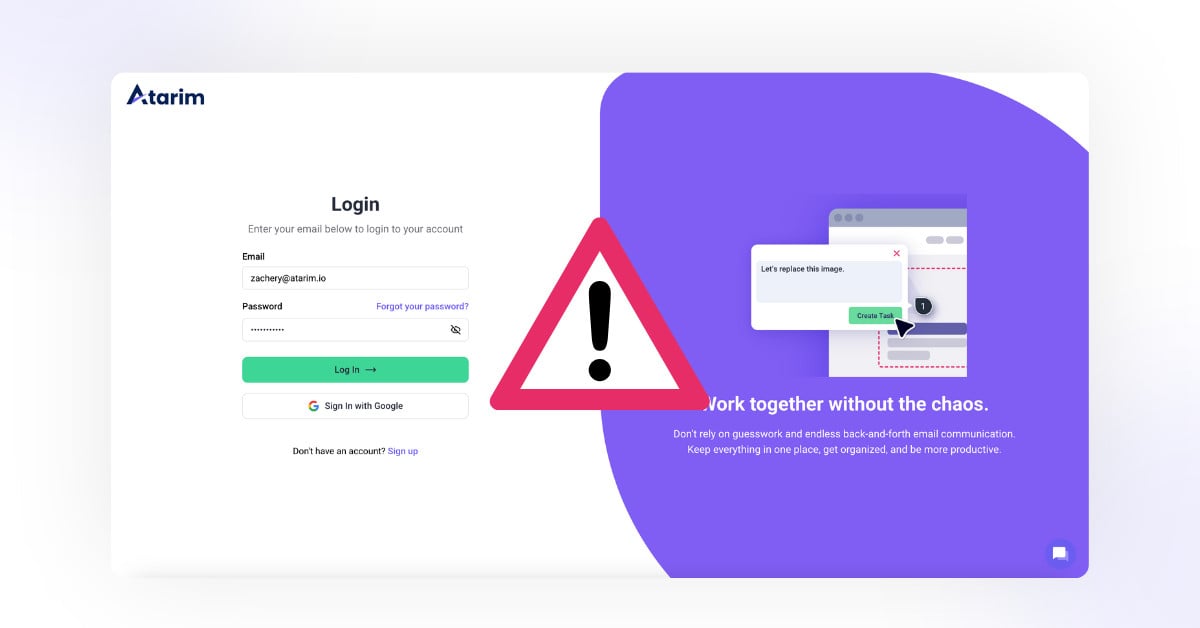
1. Ensure Correct Login Details
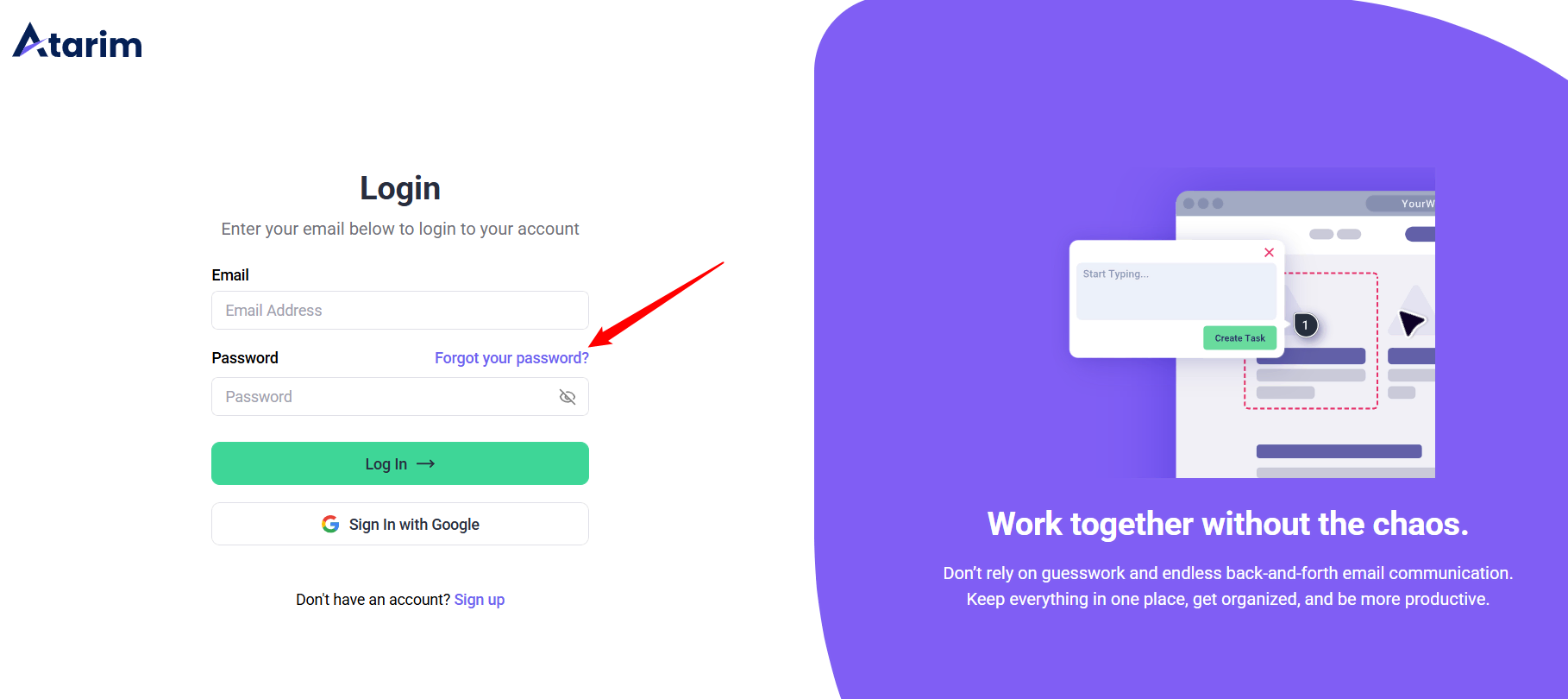
Verify that you are entering the correct email address and password associated with your Atarim account. If you’ve forgotten your password:
- Use the “Forgot Password“ option on the login screen to reset it.
- For detailed steps on resetting your password, refer to our help article.
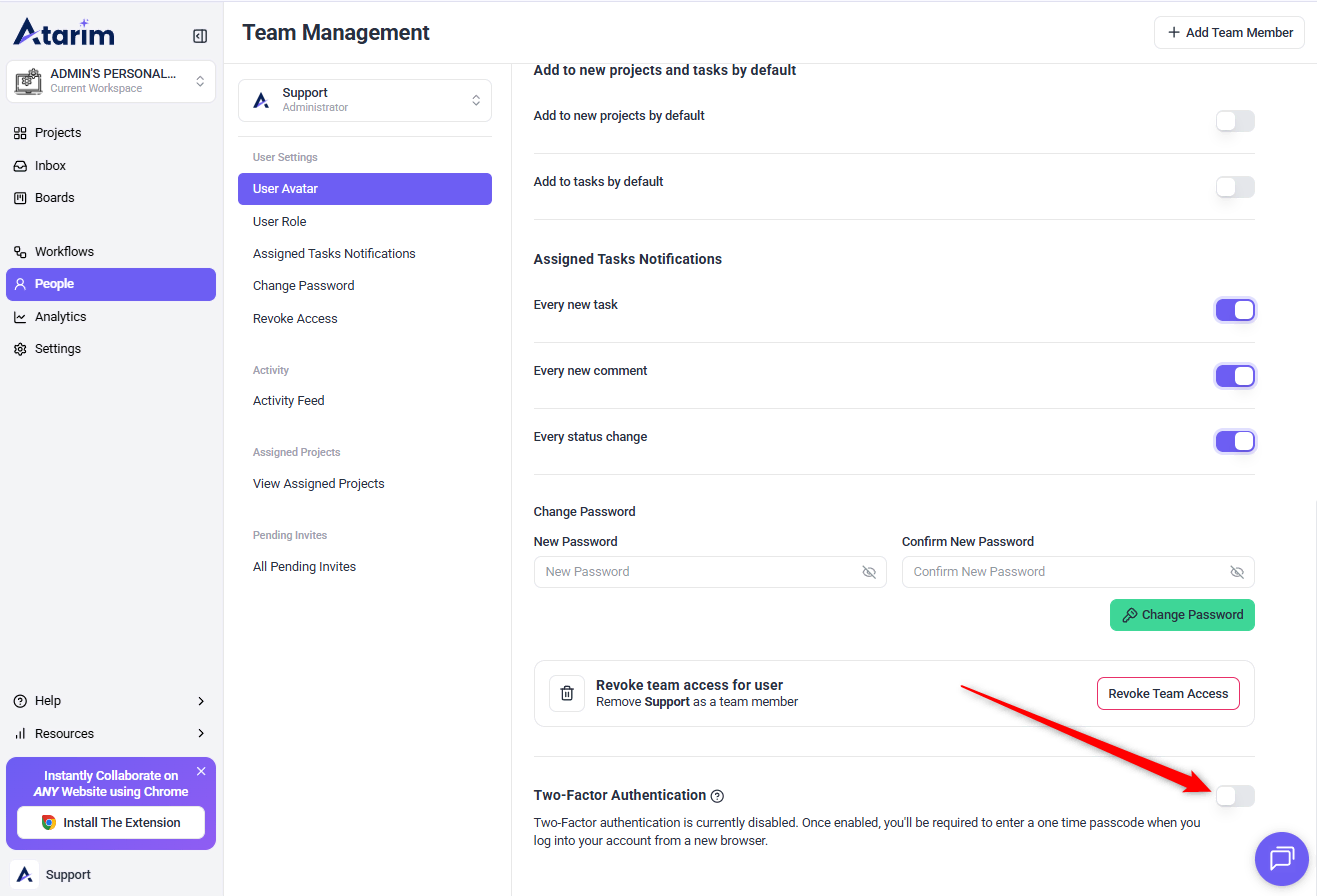
2. Check Two-Factor Authentication (2FA)
If your account has Two-Factor Authentication (2FA) enabled:
- Ensure you are using the correct authentication code sent to your registered email.
- If the code is unavailable or has expired, use the “Resend Code” option to request a new one.
3. Rule Out Browser or Connection Issues
Access issues can sometimes be caused by your browser, cache, or internet connection.
- Clear your browser cache and history
- Open Atarim in an incognito or private browsing window
- Try using a different browser
- Make sure your internet connection is stable
- Disable browser extensions temporarily, especially ad blockers or security extensions
4. Account Permissions and Admin Settings
If you are able to log in but cannot access a specific workspace, project, task, or feature, your account permissions may need to be updated.
Ask your account owner or admin to check that:
- You have been added to the correct workspace or team
- Your role has the required permissions
- You have access to the correct project or client
- Your invitation was accepted using the correct email address
- Your account has not been removed, deactivated, or assigned the wrong role
If your permissions look correct but you still cannot access the expected area, contact Atarim support with your account email, affected workspace or project, and a screenshot of what you see.
5. Reach Out to Atarim Support
If none of the above steps resolve the issue:
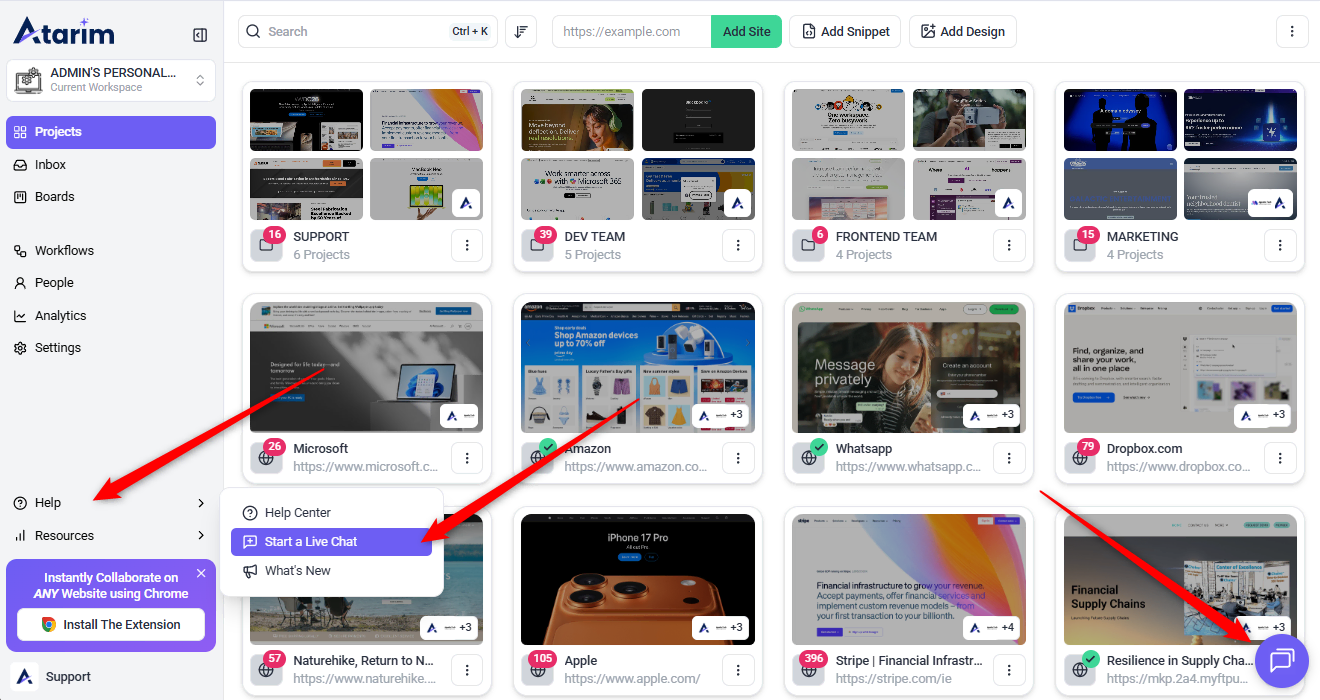
- Open support ticket using the Support messenger located in the navigation bar.
- Write to us at support@atarim.io
FAQs
Click “Forgot Password” on the login screen and follow the reset instructions.
Click “Resend Code” on the authentication screen to get a new one via email.
We recommend Chrome (latest versions).
Yes, workspace admins can change permissions or remove access. Contact your admin if you believe this has happened.
Use the support messenger in-app, or email support@atarim.io with your account details and issue description.